Guide
Why I Built a No-Login Markdown Preview & PDF Tool
I wanted a simple Markdown to PDF tool with live preview, font options, and no login wall. So I built one for everyday writing work.
Markdown to PDF sounds like a solved problem. In practice, the tools often feel heavier than the job: sign in first, upload a file, wait through a cluttered interface, then discover the output needs one small edit.
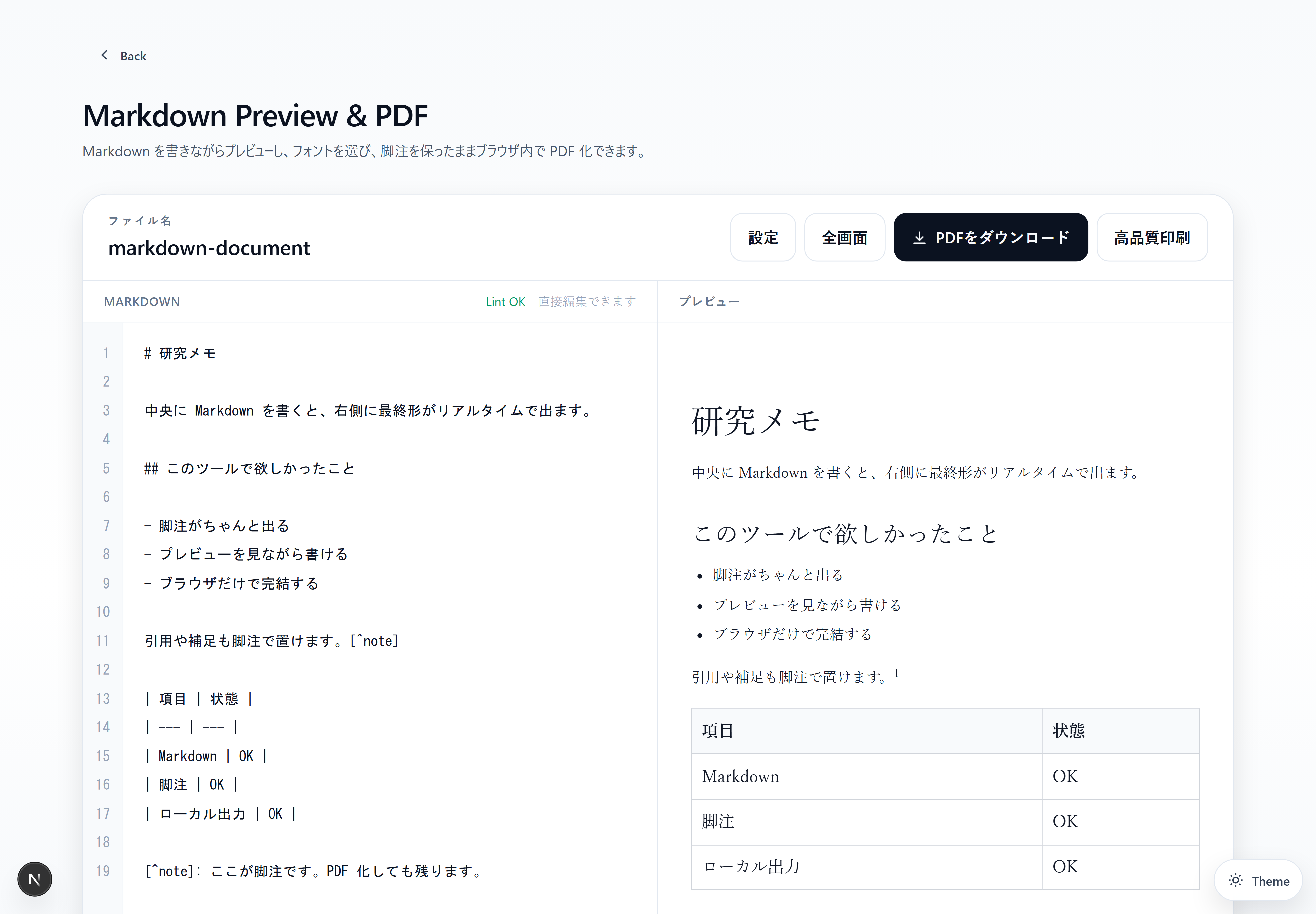
The real workflow is not just conversion
The job is rarely “convert once and leave.” It is usually:
- write a Markdown note
- preview the document
- notice a spacing, heading, table, or font issue
- edit the Markdown
- export the PDF
If preview and editing live in separate places, that loop becomes annoying very quickly. A Markdown to PDF tool should respect the loop instead of pretending it does not exist.
Markdown on the left, preview on the right
That is the core shape of this tool. The Markdown editor stays on the left. The rendered preview stays on the right. When the document looks right, you export it as a PDF.
It is intentionally plain. The tool is not trying to become a document management system. It is for the moment when you already have Markdown and need a clean PDF.
No login wall for a small job
For something as direct as Markdown → PDF, a forced login feels wrong. Accounts are useful when a product needs collaboration, cloud storage, or billing. They are not useful when you just want to turn a memo into a file.
So this tool is built to work without login. It is also kept basically ad-free, because the point is to make the writing/export loop quieter, not noisier.
Where it helps
- meeting notes
- weekly reports
- short specs
- internal memos
- clean PDF handouts from Markdown
The small tools matter because they sit inside bigger work. If a PDF export tool removes friction instead of adding it, the whole writing process feels lighter.