Guide
Markdown to PDF Works Better with Live Preview
A Markdown to PDF workflow should let you edit and preview in the same place, because most PDF fixes start in the original Markdown.
The useful part of a Markdown to PDF tool is not only the final export. It is the feedback loop before export: write, preview, adjust, export.
PDF problems usually start in the source
When a PDF looks wrong, the fix often belongs in the Markdown:
- adjust a heading
- shorten a line
- fix a table
- move a paragraph
- change the document style
If the preview is disconnected from the editor, every small correction becomes a round trip. Open the Markdown, edit it, export again, inspect again. That is exactly the friction this tool tries to remove.
A side-by-side workspace
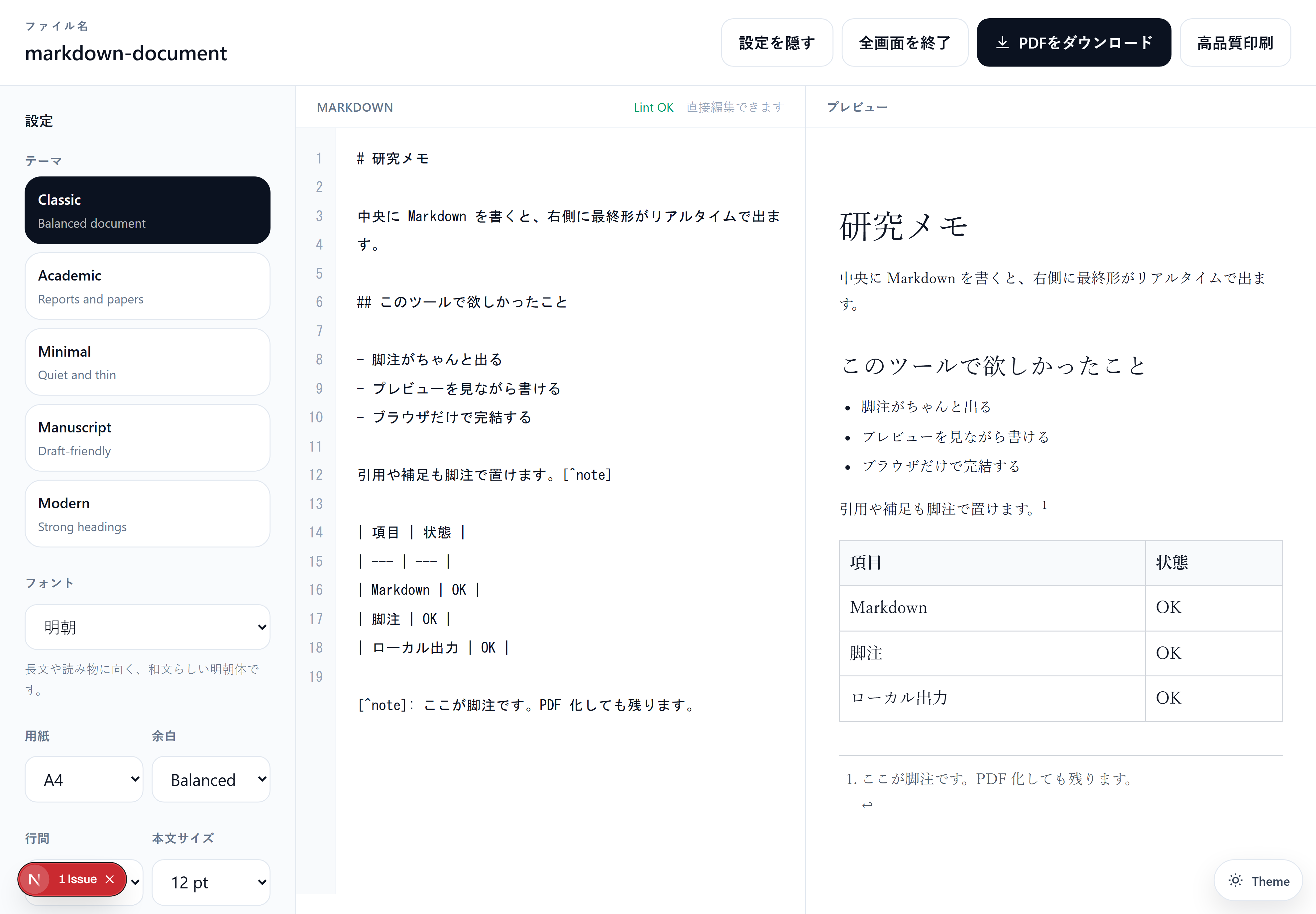
The editor stays on the left. The preview stays on the right. The export button stays close.
In fullscreen mode, the header remains sticky so you can scroll deep into a document without losing access to settings or download. That matters more than it sounds. Long Markdown files should not force you to climb back to the top just to export.
Line numbers and Markdown lint
Line numbers are on by default because real documents get long. Markdown lint is also on by default, catching practical issues such as trailing spaces, missing heading spaces, repeated blank lines, and very long lines.
Both can be turned off in Settings. The defaults are meant to help during writing, not get in the way.
The point
Markdown is a fast writing format. PDF is a stable sharing format. The best tool between them should preserve both advantages: fast editing on one side, predictable output on the other.