Guide
Fonts, Headers, Footers: Making Markdown PDFs Feel Like Documents
Markdown Preview & PDF now supports font choices, page numbers, headers, footers, line numbers, and Markdown lint from Settings.
Markdown is excellent for writing quickly. PDF is better for sharing something that should look fixed. The gap between them is where document settings matter.
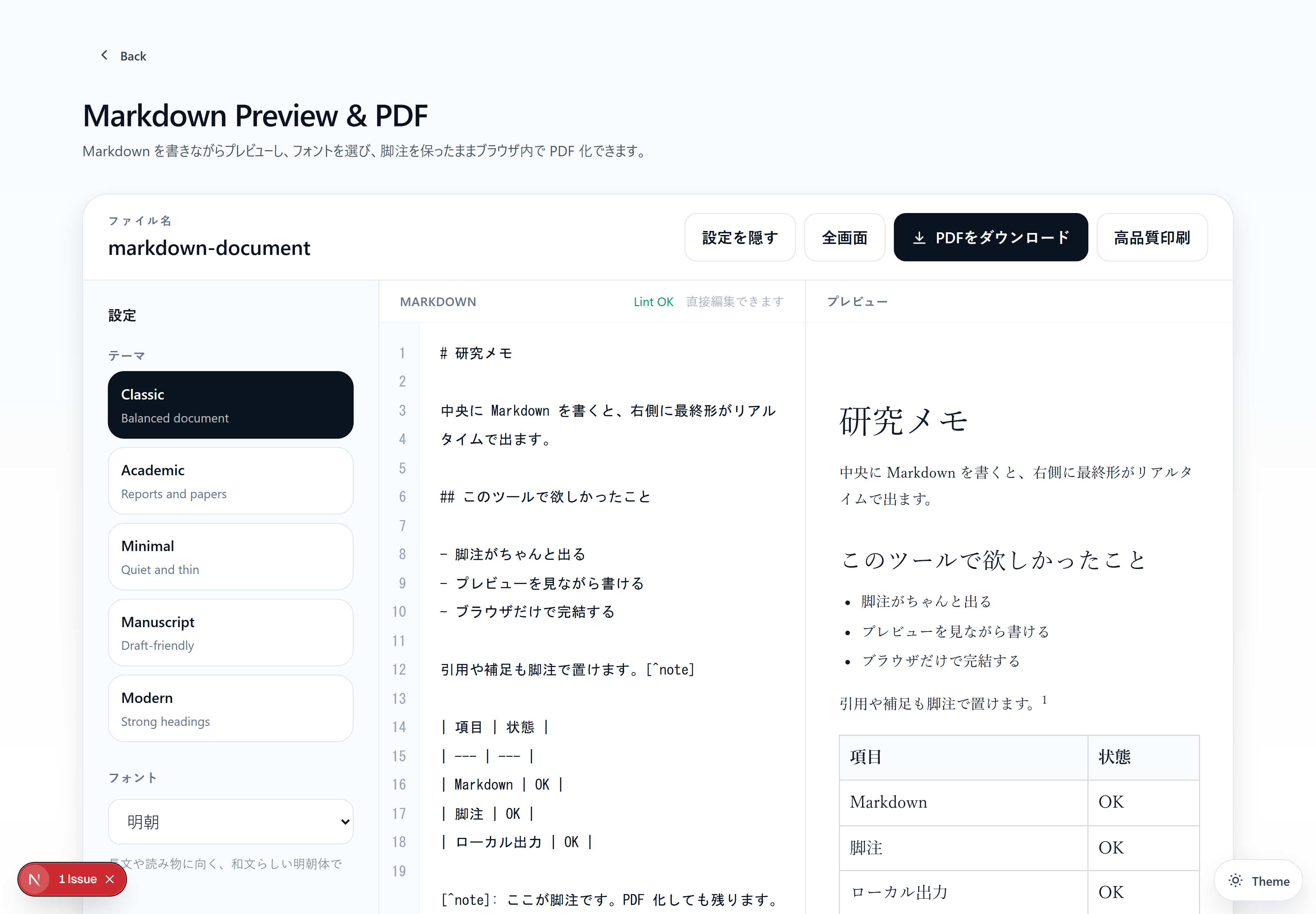
Keep the main workspace simple
The main screen is intentionally two columns: Markdown and Preview. Settings stay hidden until you need them, because the writing surface should not be crowded by controls.
When you open Settings, you can tune the document without leaving the editor.
What you can adjust
The tool now supports:
- PDF style
- font family
- paper size
- margins
- line height
- body text size
- header text
- footer text
- page numbers
- editor line numbers
- Markdown lint
The default style is classic: plain, readable, and document-like. It avoids the card-style look because most PDFs need to feel like documents, not UI panels.
Page numbers, headers, and footers
Page numbers are small, but they make multi-page PDFs easier to discuss. Headers and footers help when the document needs a title, source, date, or lightweight context.
These features stay optional. A quick memo can remain clean. A more formal handout can include the extra structure.
The balance
A Markdown to PDF tool should not become a full desktop publishing app. But it should give you the controls that matter when the PDF is meant to be read by someone else.
That is the balance here: write fast in Markdown, preview the result, then apply just enough document polish before exporting.