Guide
Daily Report Time Calculator: Add Tasks and Get the End Time
Add task durations plus travel time, then calculate the expected end time or the required start time for a daily report.
If your day is made of several tasks plus travel time, the total is easy to underestimate. A daily report time calculator makes the shape of the day visible before you send the report.
Quick answer
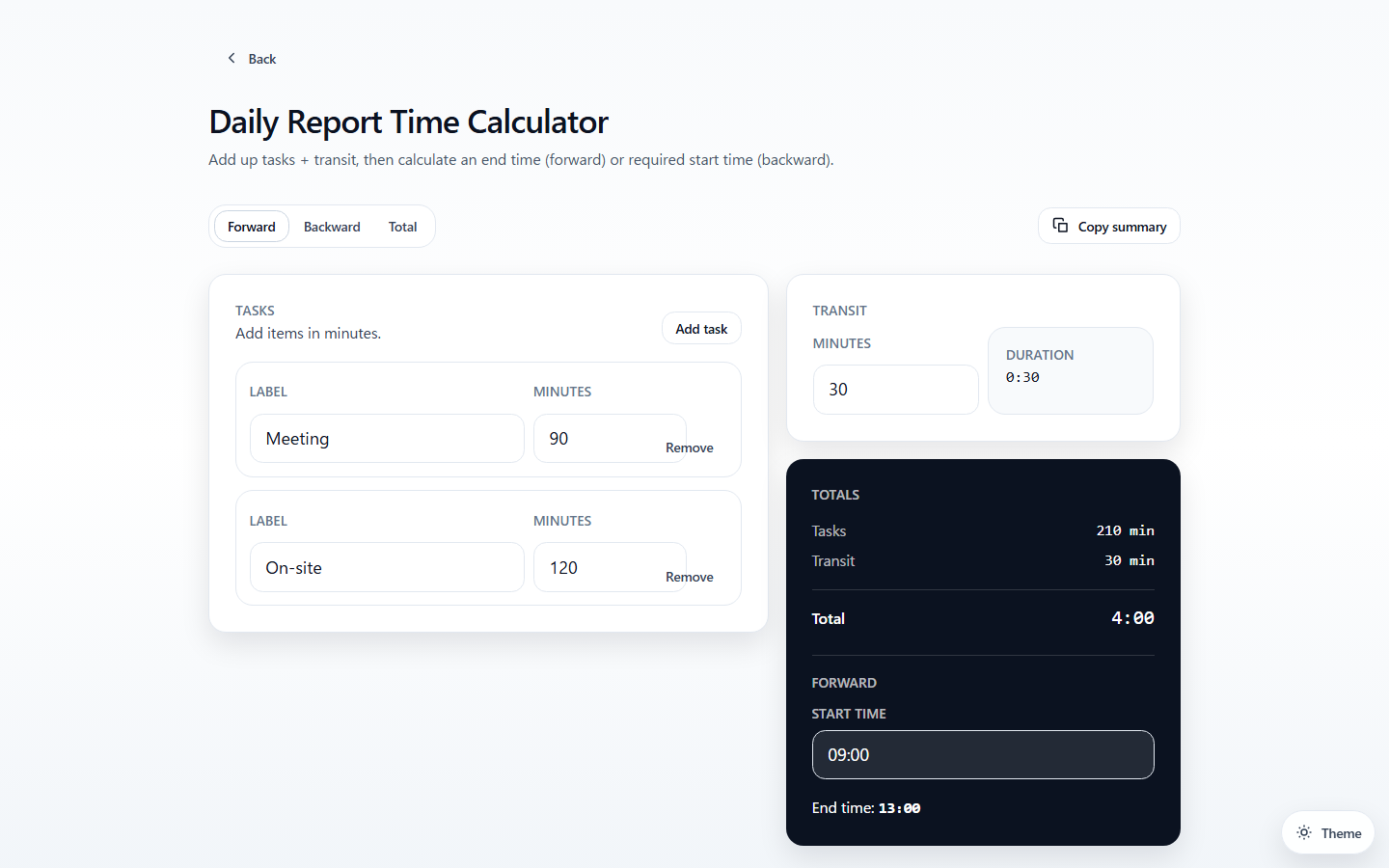
Add each task duration in the Daily Report Time Calculator, add transit time, and the calculator gives you both the total work time and the resulting end time. If you know when you must finish, switch to the backward calculation mode to find the required start time.
What it helps with
- Sum several task durations
- Add transit time
- Calculate the end time from a known start
- Calculate the required start time from a known end
A simple example
If you have:
- Meeting: 90 min
- On-site work: 120 min
- Transit: 30 min
the total becomes 4:00, and a 09:00 start ends at 13:00.
Why this is better than mental math
Mental arithmetic is fine for one task. It gets brittle once you mix multiple jobs, transit, and reverse planning. The tool keeps both the total and the resulting clock time visible at once.
Forward vs backward calculation
There are two common questions:
- If I start at 09:00, when will I finish?
- If I must finish by 18:00, when do I need to start?
Those sound similar, but they are different workflows. A useful daily report calculator should handle both without making you rebuild the same task list twice.
When this is especially useful
- field work with travel between locations
- maintenance visits with several small jobs
- end-of-day reporting
- estimating whether one more task still fits today
- checking whether a schedule promised to a client is realistic
What to include in the total
If the report is meant to reflect actual occupied time, include not only task durations but also travel, handoff, setup, and any recurring fixed time that consumes the day. The number becomes more useful when it matches lived time rather than optimistic task-only time.
Related tools
Use Hours From Now when you only need a quick offset, or Minutes From Now for short scheduling checks.